Setting Up Remote Desktop (XRDP) for a Linux Homelab
A tutorial on installing and configuring XRDP on a Linux server to enable seamless remote desktop access from other machines on the network.
Project Background
After experiencing issues with Apache Guacamole on Ubuntu 20.04 (likely due to compatibility bugs in that particular version), I decided to implement XRDP as a more reliable remote desktop solution for my homelab environment. This proved to be a significantly better approach.
XRDP Desktop Environment
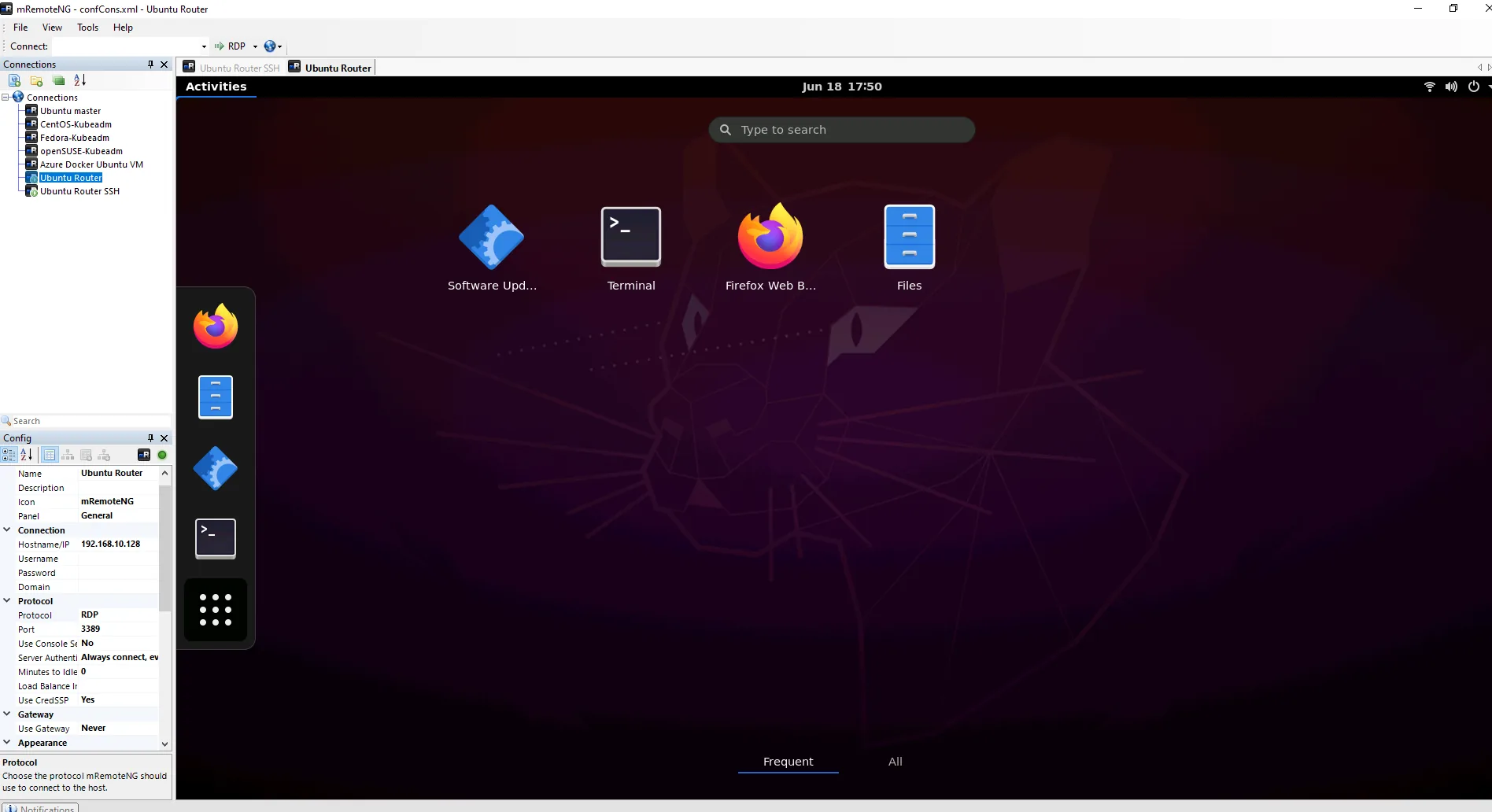
Ubuntu desktop environment accessed remotely via XRDP with full GUI functionality
Installation Process
Clean Installation Approach
I performed a fresh Ubuntu server installation to ensure a clean environment, then installed XRDP and the necessary desktop environment components. This approach eliminates potential conflicts from previous configurations.
Key Installation Steps:
- Fresh Ubuntu 20.04 server installation
- Install desktop environment (GNOME/XFCE/LXDE)
- Install and configure XRDP service
- Configure firewall rules for RDP access
- Optimize XRDP configuration for performance
Configuration Details
XRDP Configuration File
The main configuration file /etc/xrdp/xrdp.ini requires tuning for optimal performance and compatibility with different desktop environments.
# Example key configurations:
max_bpp=24
use_fastpath=both
tcp_nodelay=true
tcp_keepalive=true
Desktop Environment Compatibility
XFCE
Excellent compatibility, lightweight
GNOME
Works well, more resource intensive
LXDE
Minimal resources, fast performance
Performance Advantages
XRDP vs. Guacamole
XRDP demonstrates significantly better performance and stability compared to Guacamole in my testing environment. Key improvements include:
- More responsive user interface and mouse tracking
- Better handling of high-resolution displays
- Improved clipboard integration between local and remote systems
- More reliable connection stability over extended sessions
- Simpler troubleshooting and configuration management
Common Troubleshooting
Connection Issues
Check firewall settings and ensure port 3389 is open
Black Screen
Usually related to desktop environment conflicts - check session configuration
Performance Issues
Adjust color depth and disable visual effects for better performance
Security Considerations
Recommended Security Measures:
- Change default RDP port from 3389 to a custom port
- Implement certificate-based authentication where possible
- Use VPN tunneling for connections over the internet
- Configure fail2ban to prevent brute force attacks
- Regularly update XRDP and the underlying operating system
- Monitor connection logs for suspicious activity
Use Cases and Benefits
Homelab Management
- Remote server administration
- GUI access to headless systems
- Development environment access
- Media server management
Business Applications
- Remote work capabilities
- Access to specialized software
- Centralized desktop management
- Cost-effective thin client solutions