How to Export and Analyze Your GroupMe Data
A technical write-up on using APIs and custom scripts to export chat data from GroupMe for analysis and archival.
Overview
This guide walks through the process of interacting with the GroupMe API to extract and analyze your chat data. We'll cover authentication, data fetching, and processing the JSON response with custom PowerShell scripts to create a usable data export for analysis or backup purposes.
Step 1: Export Your Data from GroupMe
First, navigate to GroupMe's data export feature and download your chat history as a ZIP file.

GroupMe's data export interface - locate and click "Export My Data"
Step 2: Extract and Navigate to Files
Once the ZIP file is downloaded, extract it to a local directory. You'll find your message data in JSON format.
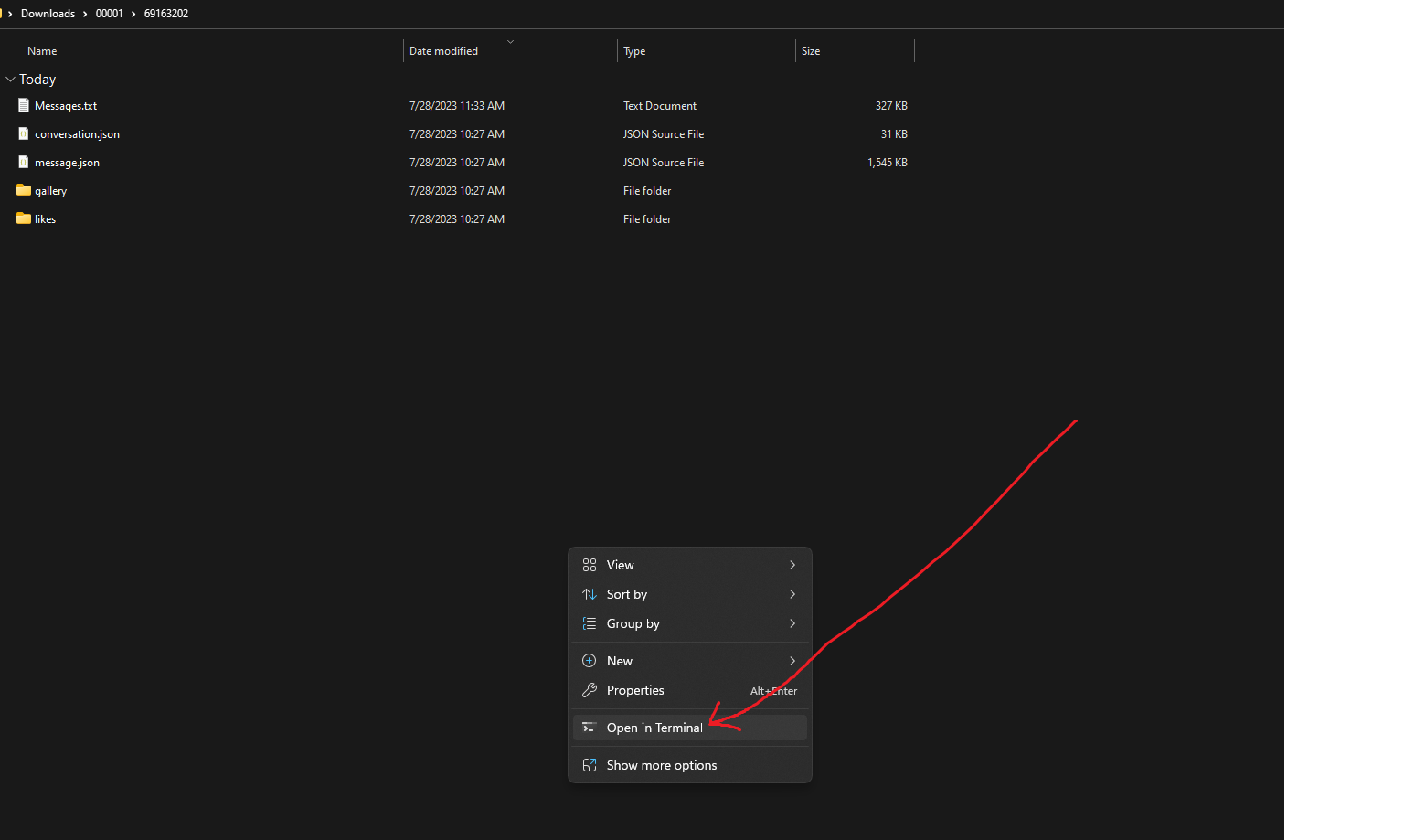
Extracted files - right-click in the directory and select "Open in Terminal"
Step 3: Use PowerShell Script for Processing
I've created a custom PowerShell function to parse the GroupMe JSON data efficiently. Copy the function from my GitHub repository and paste it into your PowerShell terminal.
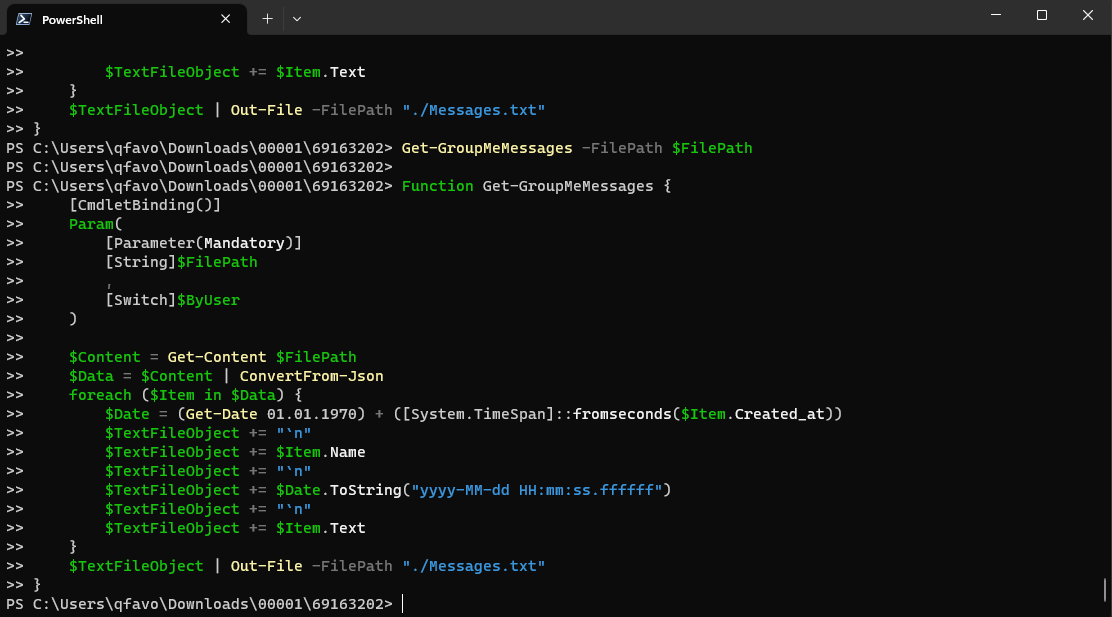
PowerShell terminal executing the Get-GroupMeMessages function
GitHub Repository:
Get-GroupMeMessages.ps1Step 4: Execute the Script
Set the file path variable and run the function to process your data:
$FilePath = "/path/to/your/message.json"
Get-GroupMeMessages -FilePath $FilePath
This will generate a formatted text file in the same directory, making your GroupMe data easily readable and searchable for analysis or archival purposes.
Key Benefits
- Complete data ownership and backup of your chat history
- Searchable and analyzable text format
- Automated processing using PowerShell scripting
- Customizable output format for specific analysis needs